

The GA4 view_search_results event is an automatically collected event that fires when a user performs a site search and views the results page. It captures the search_term parameter, which records the exact query the user entered into the site's internal search box.
—
Google Help explains the official process in [GA4] Automatically collected events.
What Is the view_search_results Event in GA4?
The view_search_results event in GA4 is an automatically collected event that triggers each time a user views a page containing a recognized search query parameter in the URL. GA4 collects this event without additional code when Enhanced Measurement is enabled and the site search URL query parameter is correctly configured in the GA4 data stream settings.
Website Rankings Loss Audit: 8 Causes, Steps, and Recovery Guide
Do Social Signals Affect Google Rankings? John Mueller's 5 Statements and SEO Evidence
The event captures 3 default parameters on every trigger:
- search_term: The exact keyword or phrase the user searched
- page_location: The full URL of the search results page
- page_title: The title of the search results page
According to Google's official GA4 documentation, view_search_results is 1 of 13 automatically collected events enabled through the Enhanced Measurement feature in GA4 data stream settings.
What Is the Difference Between view_search_results and the Site Search Report in GA4?
The view_search_results event is the raw data collection mechanism. The Site Search report in GA4 is the pre-built report that displays aggregated view_search_results event data. The event fires at the session level. The Site Search report surfaces that data in GA4's Reports > Engagement > Events section and within the Search terms dimension in Explore.
—
What Is the search_term Parameter in GA4?
The search_term parameter in GA4 is an event-scoped parameter automatically attached to the view_search_results event. It records the exact string a user typed into a site's internal search box at the moment the search results page loaded.
The search_term parameter operates under 3 technical conditions:
- The site's search results URL must contain a query string parameter. Examples include ?q=, ?s=, ?query=, and ?search=.
- Enhanced Measurement must be enabled in the GA4 data stream settings.
- The specific query parameter key must be entered in the GA4 site search configuration field.
GA4 supports up to 5 query parameter keys in the site search configuration. Multiple keys are separated by commas in the configuration field.
How Does GA4 Collect the search_term Parameter Automatically?
GA4 collects the search_term parameter automatically by reading the URL of each page a user visits. When Enhanced Measurement detects a URL containing a configured query parameter key, it extracts the value of that parameter and assigns it to the search_term field within the view_search_results event. No custom JavaScript or Google Tag Manager trigger is required for this process when the query parameter key is correctly configured.
—
How Do You Configure the view_search_results Event in GA4?
Configuring the view_search_results event in GA4 requires 6 steps:
- Open Google Analytics 4 and navigate to Admin using the gear icon in the lower left.
- Select Data Streams under the Property column.
- Click the web data stream connected to the site.
- Click the pencil icon next to Enhanced Measurement to open the settings panel.
- Ensure the Site Search toggle is enabled. Click the settings gear icon next to Site Search.
- Enter the site's query parameter key in the "Query parameters" field. Common values include q, s, query, search, and keyword. Separate multiple keys with commas.
Save settings after entering the query parameter keys. GA4 begins collecting view_search_results events on the next session after the configuration is saved.
What Query Parameters Does GA4 Track for Site Search?
GA4 tracks site search query parameters that match the keys entered in the data stream configuration. The 5 most commonly used query parameter keys across websites are:
- q: Used by WordPress, Google Custom Search, and many CMS platforms
- s: Used by WordPress default search
- query: Used by Magento and custom search implementations
- search: Used by Shopify and various e-commerce platforms
- keyword: Used by some custom-built search systems
Websites using JavaScript-rendered search results that do not update the URL require a custom event implementation using gtag.js or Google Tag Manager instead of automatic collection.
—
How Do You Verify the view_search_results Event Is Firing in GA4?
Verifying the view_search_results event in GA4 requires 4 steps:
- Open GA4 and navigate to Admin > DebugView.
- Enable GA4 DebugView on the browser by installing the Google Analytics Debugger Chrome extension or by appending ?_ga_debug=1 to the site URL.
- Perform a site search on the website while DebugView is active.
- Confirm that the view_search_results event appears in the DebugView event stream with the search_term parameter value matching the query entered.
If the view_search_results event does not appear in DebugView, verify that the query parameter key in GA4 data stream settings matches the exact key in the site's search results URL. Key mismatches are the most common cause of view_search_results collection failure.
What Reports Show view_search_results Data in GA4?
GA4 surfaces view_search_results data in 3 locations:
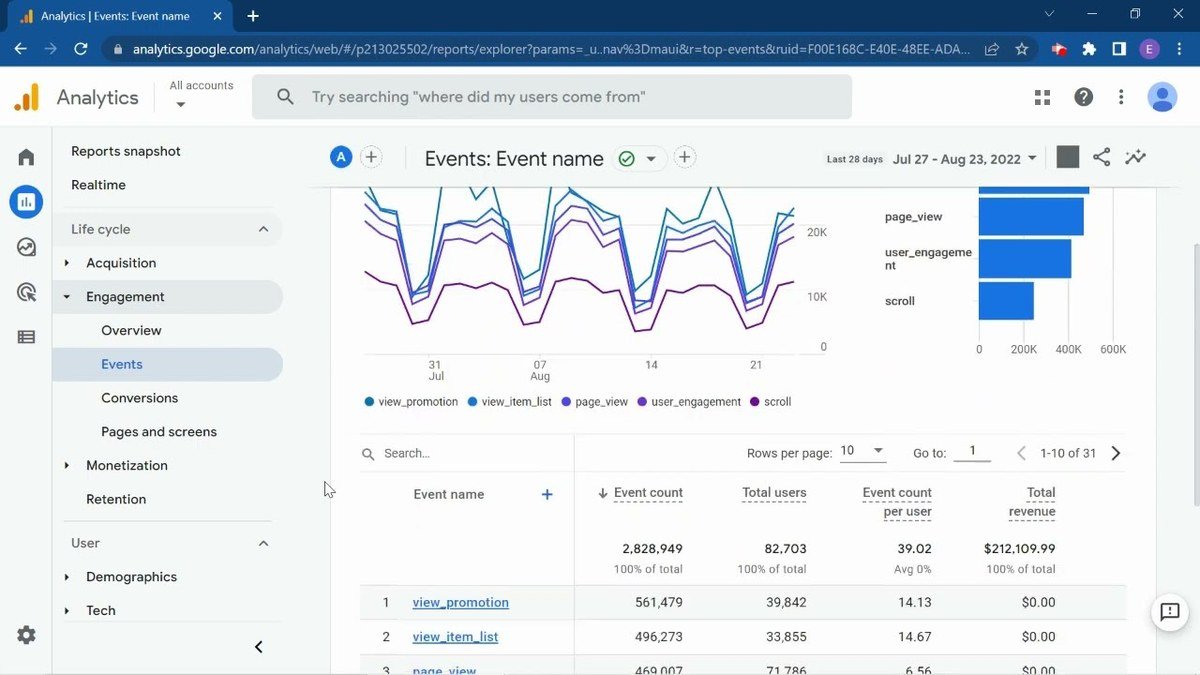
- Reports > Engagement > Events: Lists view_search_results as an event with total event count and user count
- Explore > Free Form Report: Allows custom breakdowns using the Event Name dimension filtered to view_search_results and the Search term dimension for individual query data
- Reports > Engagement > Pages and Screens: Shows which search results pages generated the most sessions when filtered by the view_search_results event
The Search term dimension is available as a standard dimension in GA4 Explore reports without requiring custom dimension registration for properties collecting data after March 2023.
—
How Do You Create a Custom Exploration Report for view_search_results in GA4?
Creating a custom Exploration report for view_search_results in GA4 requires 7 steps:
- Open GA4 and click Explore in the left navigation panel.
- Click Blank to create a new exploration.
- Under Variables, click the plus icon next to Dimensions and add Search term and Page location.
- Under Variables, click the plus icon next to Metrics and add Event count, Sessions, and Users.
- Drag Search term into the Rows section under Tab Settings.
- Drag Event count, Sessions, and Users into the Values section.
- Under Filters, add a filter where Event name exactly matches view_search_results.
This report returns a ranked list of all search terms users entered, sorted by event count. It identifies the 10 most searched terms, content gaps, and user intent patterns across the site's internal search function.
Why Is the search_term Parameter Showing as (not set) in GA4?
The search_term parameter shows as (not set) in GA4 due to 3 causes:
- The query parameter key in GA4 data stream settings does not match the key in the search results URL. For example, GA4 is configured for q but the site uses query.
- The site uses a JavaScript-based search that updates results without changing the URL. GA4 cannot read query parameters that do not appear in the page URL.
- The Enhanced Measurement Site Search toggle is disabled in the data stream settings.
Resolving cause 1 requires updating the query parameter field in GA4 data stream settings. Resolving cause 2 requires a custom event implementation using gtag.js with the event name view_search_results and a manually captured search_term parameter value.

Waleed Qamar holds a BSc in Computer Science from Purdue University and has spent the years since turning that technical foundation into something the curriculum never covered: figuring out why websites rank, why they fall, and why most businesses never find out until it is too late.
Pakistan-born and based between the United States and South Asia, he has managed search visibility for e-commerce stores, local service businesses, and SaaS startups across two continents. He started in SEO when guest posting still worked, survived the Penguin update, and has rebuilt client sites from scratch after algorithm hits more than once.
He has watched good businesses get sold packages that looked like progress and delivered nothing lasting. He has also seen the right approach quietly double a site’s traffic without a single press release about it.
His writing on SEO By Highsoftware99 covers Google algorithm updates, autocomplete optimization, semantic SEO structure, and the widening gap between what agencies promise and what Google actually rewards in 2026.
He knows what a traffic cliff looks like in Search Console on the morning you discover it.